Our booking system now accepts Tax-Free Childcare payments for both Holiday Camps and Wraparound Care Clubs.
- First, load money onto your TFC account to make payments.
- Then, follow the instructions below to link your TFC account to the booking system to make your bookings.
Link your child’s TFC Account to our Booking System
Step 1. Log in to your account at Bookings.NonStopAction.co.uk
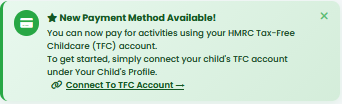
Step 2. Click on the link in the green banner at the top of the page:
Step 3. Find your child in the list.
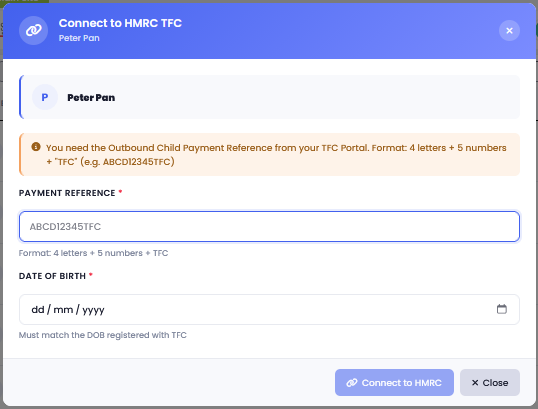
- Input your child’s unique TFC reference:
Format: 4 letters + 5 numbers + “TFC”, e.g. ABCD12345TFC. - Enter their date of birth.
- Click Connect to HMRC button
Please Note
Both must match with the details registered with HMRC.
e.g. if your child’s full name on TFC is Matthew rather than Matty,
you may need to update the name on Non Stop Action’s booking system to match HMRC.
Step 4. Click Continue button to login to HMRC.
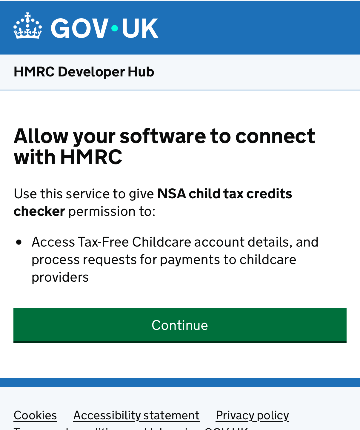
You will need your Government Gateway ID and password to allow us to link with your TFC account.
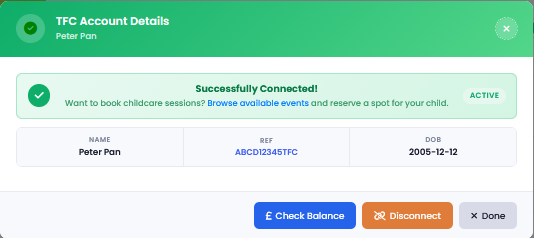
Step 5.It then redirects you back to our website and displays the TFC pop up for your child, showing funds available to make bookings.
Making a TFC Booking
Please note: TFC bookings can only be made for Wraparound Care Clubs and Holiday Camps as these are Ofsted registered events.
Step 1. Select the event to book on the Bookings page. Then select dates/timings.
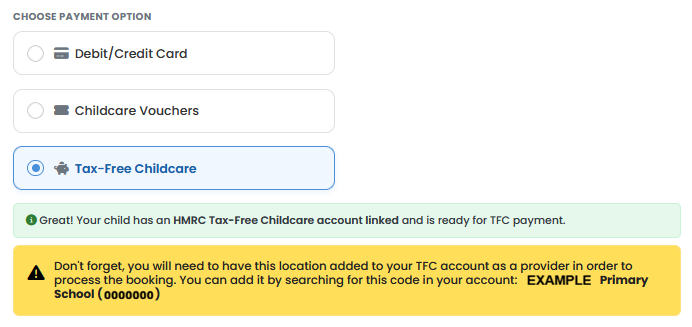
Step 2. Select Tax-Free Childcare from the 3 payment options at the bottom of the page.
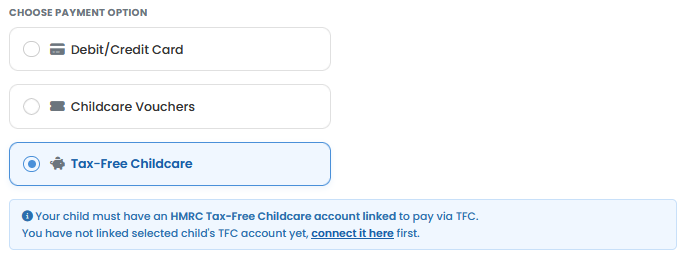
- Check you set up the TFC link with that specific child.
- Check you selected the child from the dropdown list, before you selected payment.
New Location? Action Required
You need to link the childcare provider for that particular location of your event in your HMRC account, before payment can be processed in your cart. If you’ve been booking WAC sessions using TFC already, this is already set up in your account.
First time booking or in a different location to your child’s school
- Log into your HMRC account
- Add the provider by searching the setting reference number provided in the yellow box on the event page.
This only needs to be set up once per location.
Step 3. Add the event to your basket.
- For each TFC booking added to your cart, there’s a blue button to click to Pay via TFC.
- Any card payment bookings to be processed in you cart can be done after all TFC bookings have been processed.
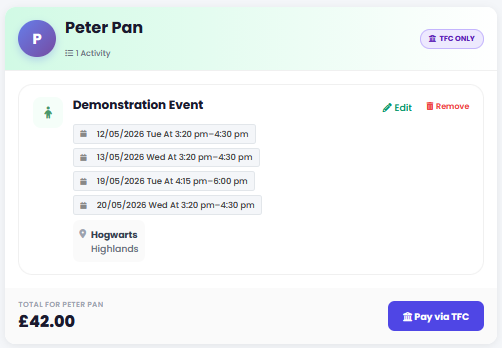
Step 4. Booking confirmed. After pressing the Pay via TFC blue button, you will receive an email confirming your booking.
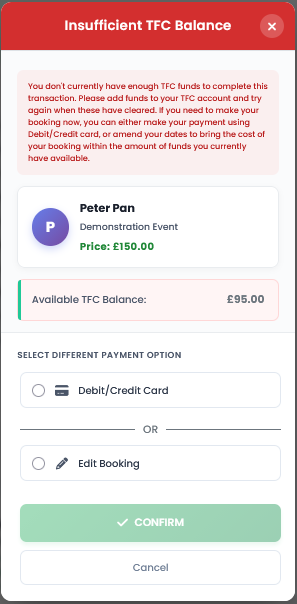
Options available
- Pay for the booking with your Debit/ Credit card.
- Edit Booking: remove sessions, so your booking is under your current available TFC Balance.
- Add more funds to your TFC account. Wait until these have cleared before proceeding with your booking.
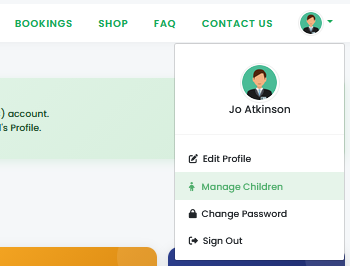
- Click “Account option” (top right)
- Click “Manage Children”
- Click the green eye to check your child’s TFC balance
- Click TFC transactions to see transactions
This table will breakdown the amount paid for each session. Click on the blue eye to see and download a receipt.